Use automated findings as evidence, not a verdict
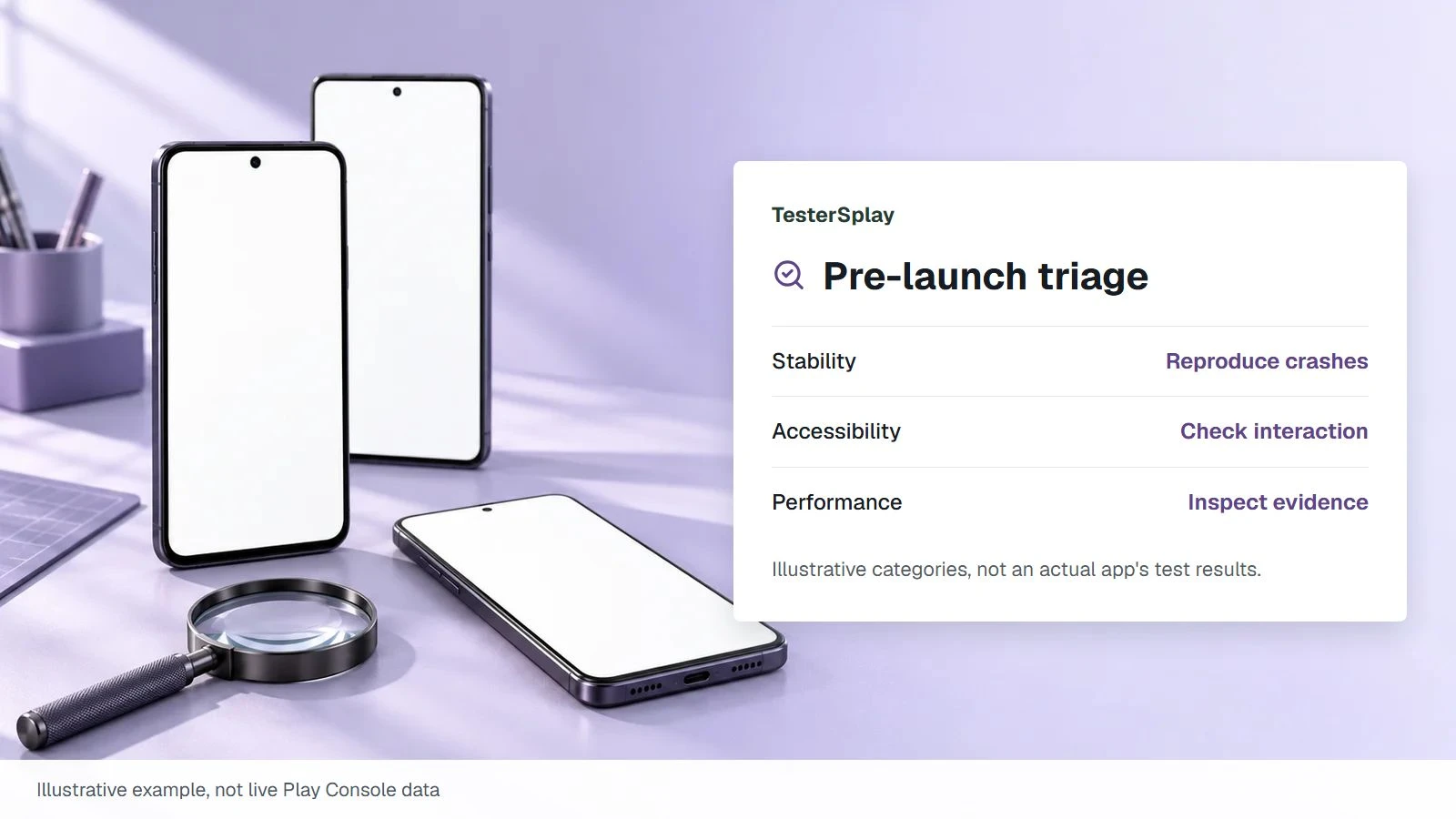
A pre-launch report can reveal problems on device configurations you do not personally own. In Play Console, review the report overview and details for stability, performance, accessibility, and screenshots. Confirm the package, tested version, and test completion status before comparing it with feedback from your closed testers.
If the report is still running or a test failed to execute, do not describe that as a clean result. An automated report also cannot prove that a person completed the required closed-test participation period. These are different parts of release preparation.
Start with failures that block the main task
For a crash or an unresponsive app, record the screen, build, device configuration, and available trace or reproduction steps. Try the same path in the current build with a dedicated test account. Prioritize failures that prevent registration, login, the core action, or saving user data over cosmetic differences.
Link each fix to a report entry and retest the affected workflow. If you cannot reproduce a finding, keep the evidence and document what you tried; do not silently mark it resolved. A report from an earlier build is not proof that a newer build has the same problem or that the problem disappeared.
Read accessibility and screenshots together
Look for text that becomes clipped at larger sizes, controls with unclear labels, low-contrast states, and navigation that cannot be completed reliably. Screenshots help locate the state, but should be checked against an actual interaction. Automated coverage may miss a screen behind a login, a one-time permission, or a complex workflow.
Review performance findings in their device and test context. Avoid claiming that one measurement represents every user's experience. Where possible, pair automated evidence with a tester's reproducible report rather than replacing user feedback with a score.
Make a small release-readiness log
| Finding | Action | Verification |
|---|---|---|
| Main task fails | Fix the reproducible cause | Repeat the same workflow |
| Access is blocked | Prepare safe test credentials | Confirm the intended screen is reached |
| Layout is clipped | Adjust the affected screen | Retest text size and device configuration |
Use the resulting history when explaining what changed during testing. A passing report is not guaranteed policy compliance or automatic production approval.
Write an actionable bug report and organize production-access evidence.
Source: Google's pre-launch report guide.
Share this article